Bitrix24 CRM Forms for Real Estate: Build a Viewing-Request Form
👉 Book a free 30-minute Bitrix24 demo
Picture a buyer scrolling through your website at 11 pm. They like a two-bedroom apartment, tap "Request a viewing" and type their details. What happens next decides whether that enquiry becomes a conversation or disappears into an inbox nobody checks until Monday.
In Bitrix24, that moment can be handled by a CRM form. The visitor submits the form, and the details are saved straight into your CRM with no copying and pasting. This guide walks through Bitrix24 CRM forms for real estate: how to build a viewing-request form, which settings matter most for a brokerage, and how to place it on your website. Everything below is based on Bitrix24's own help documentation, and the example form is illustrative.
What a CRM form does
According to Bitrix24, CRM forms help you collect requests, contacts and feedback. Clients schedule appointments, book services or place orders on your site, and the data from the form is automatically saved in the CRM. For a brokerage, the obvious uses are viewing requests, valuation requests, "send me the brochure" forms and landlord enquiries.
Bitrix24 also reminds users to check whether CRM forms are available on their plan, so confirm that on the pricing page before you plan the rollout.
Step 1: Create the form
- Go to CRM > Sales > Sales channels > CRM forms.
- Click Add.
- Choose a form template for the task. Each template comes with preset fields that you can edit.
The editing page shows settings on the left and a live preview on the right, and you can switch the preview between devices. Many buyers will open your form on a phone, so always check the mobile view before you publish.
Step 2: Choose fields that agents actually need
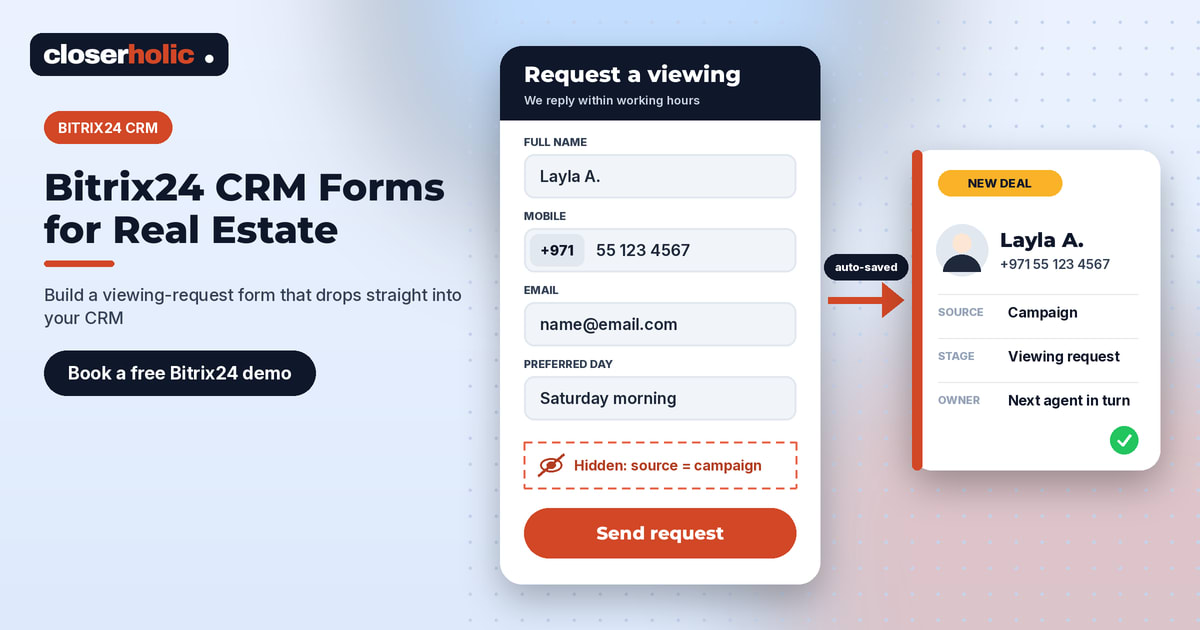
A short form gets completed more often, so resist the urge to ask for everything. For a viewing request, an illustrative field list might be:
- Full name (required)
- Mobile number (required), with a default country code pre-filled so the visitor only types the rest
- Email (optional, with a hint such as "We send the viewing confirmation here")
- Preferred viewing day or a short comment
- Property reference as a hidden value, described below
Bitrix24 lets you remove fields, drag them into a new order, add fields from a contact or company, and mark any field as required. Field hints can guide the customer, and "field show rules" let you hide or show fields depending on earlier answers, for example showing a budget field only for buyers rather than tenants.
Step 3: Use hidden fields to capture the source
This is the setting brokerages tend to overlook. Bitrix24 supports hidden field values: fields that are filled in automatically with data the visitor never sees. The help documentation gives traffic source as an example of technical information you can pass to the CRM this way.
For real estate, think about which context you would like attached to every enquiry: the campaign it came from, the page it was submitted on, or an internal listing reference. With the source recorded at the moment of submission, your managers can later compare channels without asking agents to remember where each lead came from. Our website checklist for property search and lead forms explains how to design the form on the website side.
Step 4: Decide what the form creates
In the CRM entities section you select which items appear in the CRM when someone submits. Two points from the documentation are worth knowing:
- If a form creates a lead but includes fields from a contact, the data is saved in the contact, and a duplicate lead linked to that contact is created. To keep the data in the lead, use only lead fields.
- If a form creates a deal, you choose the pipeline and how duplicate contacts and companies are handled.
Bitrix24 treats a record as a duplicate if any two of these three match: full name or company name, phone number, or email. You then choose to allow, replace or merge duplicates. For brokerages, merge is usually the safest starting point, because a returning buyer keeps one history and nothing already filled in gets overwritten. There is also an option to use an active deal instead of creating a new one. If duplicates are already a headache, our duplicate contacts clean-up playbook is a good next read.
Step 5: Assign and protect
Under Responsible, you pick the employees who receive new items. Bitrix24 distributes them in turn. If your plan includes time tracking, you can also skip anyone who is not clocked in or is on a scheduled break. If everyone is unavailable, or the plan has no time tracking, requests are distributed in turn anyway.
For spam, Bitrix24 offers reCAPTCHA V2 to verify that a human is filling in the form. You can also attach an agreement, either ready-made or your own.
Step 6: Choose the post-submit action
After the form is sent, Bitrix24 offers three options:
- Message: thank the visitor and set expectations, such as "An agent will call you shortly."
- Redirect: send them to another page, with a pause time you set.
- Submit again: clear the fields so another person can use the same form without reloading, handy for a tablet at a show-home or an exhibition stand.
You can also connect the form to Google Analytics to track submissions and conversions, and the same form settings page links to Facebook Lead Ads integration.
Step 7: Put the form on your website
If your site is built on another platform, open the form's Embedding options, go to the Website page tab, copy the code and paste it where you want the form to appear. Bitrix24 also offers codes to show the form after a button click or when the page loads. If you use Bitrix24 sites, you add a CRM form block to the page and pick your form. Bitrix24 suggests asking a developer for help if you are not familiar with web development.
If you see the message "Unfortunately, the message has not been sent, please try again later", the documentation says updating the form usually fixes it, using the form rebuild address in the help article.
Test it before you publish
- Submit the form from your phone and from a laptop.
- Check that the record appears with the right owner, source and pipeline stage.
- Submit again with the same number to confirm your duplicate rule behaves as intended.
- Read the thank-you message as a buyer would, and make sure it sets a clear expectation.
What to do after the form works
A form only captures the enquiry. Speed of follow-up wins the viewing. Pair the form with reminders and tasks so every submission is contacted quickly; our guide to Bitrix24 automation rules for real estate follow-up shows how, and WhatsApp and Open Channels in Bitrix24 covers the conversations that start outside the form.
Closerholic implements Bitrix24 for real estate teams across the UAE and GCC. We can build your viewing and valuation forms, connect them to your website, set the duplicate and assignment rules, and train your agents. If you would like a walkthrough on your own setup, a short call is the quickest way to start.