Bitrix24 Saved Filters and Smart Views for Real Estate Pipelines
👉 Book a free 30-minute Bitrix24 demo
When a brokerage grows past a handful of agents, the deal list becomes noisy. Everyone scrolls the same kanban, nobody agrees what “needs attention today” means, and managers rebuild the same filter every Monday. Bitrix24 saved filters and carefully designed list and kanban views turn that noise into a shared playbook.
This how-to is written for real estate managers. It sticks to Bitrix24 capabilities documented on the Bitrix24 helpdesk: filters and saved filter templates in CRM lists, list column customisation, kanban card fields, and custom fields that can appear in filters.
What Bitrix24 gives you out of the box
According to Bitrix24 help articles on CRM list view and custom fields:
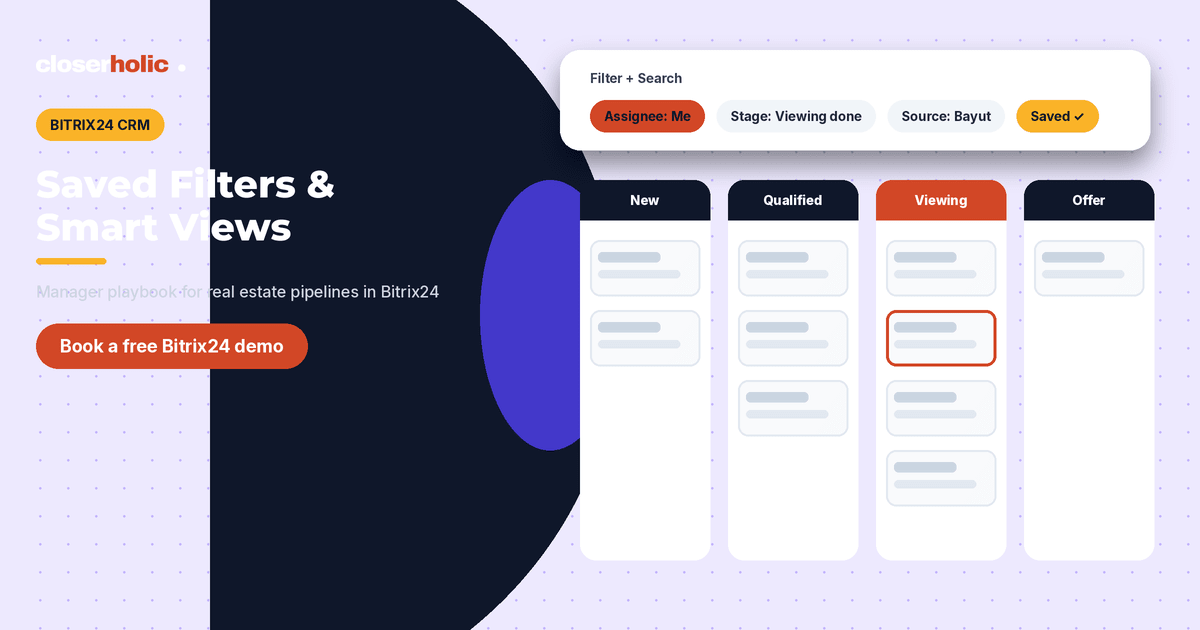
- Filter + Search on CRM lists lets you narrow deals (or leads, contacts, and other CRM items) by stage, assignee and other parameters, then Save filter as a named template so you do not rebuild it each time.
- List view settings let you choose which columns appear, reorder them, resize them, and sort. Administrators can apply a default column layout for everyone; each employee can still adjust their own view.
- Custom fields can be marked Show in filter in CRM settings so teams can filter by values such as community, listing reference, portal source or deal type.
- Kanban supports configurable preview fields on cards and quick-create fields, so agents see the facts that matter without opening every deal.
Those four pieces are enough to build “smart views” for real estate pipelines without inventing features that are not in the product.
Design views around roles, not around one giant board
Start by listing the questions each role asks every day:
| Role | Daily question | Filter idea |
|---|---|---|
| Sales agent | What is mine and waiting on me? | Assignee = me; stage in active sales stages; activity overdue or empty |
| Leasing agent | Which applications need documents? | Pipeline = leasing; stage = application; missing document flag |
| Listings coordinator | Which units went live without portal IDs? | Listing status = active; portal reference empty |
| Team lead | Where are deals stuck after viewing? | Stage = viewing completed; no activity in X days |
| Director | What is closing this month? | Expected close in current month; amount above threshold |
Each row becomes a saved filter with a clear name. Avoid cute names. Prefer “My overdue follow-ups” or “Viewing done — no next step”.
Fields you should be able to filter on
Before filters feel useful, make sure the underlying data exists. Typical real estate custom fields to enable for filtering:
- Community / building
- Listing reference
- Portal source (Property Finder, Bayut, Dubizzle, Website, WhatsApp)
- Deal stream (secondary sales, leasing, off-plan)
- Co-broke flag (yes/no)
- Viewing date
In Bitrix24, create these as CRM custom fields and turn on Show in filter (and Show in list where agents need the column). Without that setting, the field will not appear in Filter + Search.
Want your pipelines, fields and saved filters set up for you? Book a free 30-minute Bitrix24 demo and we will sketch the views your managers will actually open each morning.
How to save a filter template (list view)
- Open CRM → Deals (or the relevant item) → List.
- Click Filter + Search.
- Add the conditions you need (stage, assignee, custom fields, dates).
- Click Search to confirm the result set looks right.
- Click Save filter, enter a name, and save.
Train agents to start from a saved filter instead of scrolling the unfiltered list. For managers, pin a short “morning stack” of three filters: stuck after viewing, new leads unassigned, and deals with offers.
List columns that match the filter
A saved filter is only half the view. Configure list columns so the answer is visible without opening the card:
- Deal name / client
- Stage
- Assignee
- Community
- Listing reference
- Source
- Last activity date
- Amount (where relevant)
Administrators can save a default layout with Apply to all, then let individuals tweak. This mirrors Bitrix24’s documented list customisation behaviour.
Kanban: complementary, not a replacement
Kanban remains the best place to drag stages during live deal work. Configure kanban view form fields so each card shows community, source and next activity at a glance. Use saved list filters when you need bulk review, sorting by date, or multi-select actions such as changing assignee — Bitrix24 list view supports selecting multiple deals and applying actions in one step.
For follow-up discipline, pair views with automation as described in Bitrix24 automation rules for real estate follow-up and keep stages aligned with how you actually sell, similar to the pipelines in our earlier Bitrix24 real estate guidance.
Manager playbook: weekly hygiene
- Review the “stuck after viewing” filter every Monday and assign next steps.
- Check that new custom fields used in filters are filled on new deals (required-at-stage settings help).
- Retire filters nobody opens; rename unclear ones.
- Reconcile portal sources so marketing reports stay trustworthy — see capturing portal leads in Bitrix24.
- Audit duplicate contacts separately; dirty contacts make every filter noisier (duplicate contacts cleanup).
Naming and sharing conventions
Agree a naming pattern so filters stay discoverable: role or pipeline first, then the condition — for example “Sales · My overdue follow-ups” or “Leasing · Applications missing docs”. Ask team leads to maintain a short written list of official filters in your internal wiki or Bitrix24 Knowledge Base. Personal experiments are fine, but only the shared list should appear in onboarding for new agents.
When someone leaves the company, review filters that reference their name as assignee defaults, and hand ownership of any shared templates they created to the new team lead.
How Closerholic helps
Closerholic implements Bitrix24 for UAE real estate brokerages: pipelines, custom fields, permissions, portal lead capture and the saved filters managers rely on. We build views around how your sales, leasing and listings teams actually work — not a generic CRM demo.