Location Mapping From CRM to Property Portals: A Walkthrough
👉 Book a free 30-minute Bitrix24 demo
An agent types "Marina" into the location field of a new listing. Another types "Dubai Marina", a third picks the tower name, and a fourth writes "JBR / Marina" because the building sits between the two. All four listings are correct in the agent's head. Only some of them land in the right place on Property Finder, Bayut or Dubizzle.
Location is the field buyers filter on first, and portals do not read free text the way people do. This walkthrough shows how to set up location mapping from your CRM to property portals: one controlled location list in the CRM, translated to each portal's own locations, with simple checks so mistakes are caught before a listing goes live.
Why location needs its own process
Each portal keeps its own structured location data. Property Finder describes its Location Tree as one of its most important data assets, powering property search and maps. On Bayut, agents pick a location from a dropdown, and Bayut's help centre explains how to request a location that is missing from the list.
That means the portal decides which locations exist and how they are nested. Your CRM's job is to hold clean, consistent values and know which portal location each one corresponds to. The names and structure vary by portal and change over time, so treat the portal's current list or feed specification as the source of truth.
Step 1: agree your CRM location levels
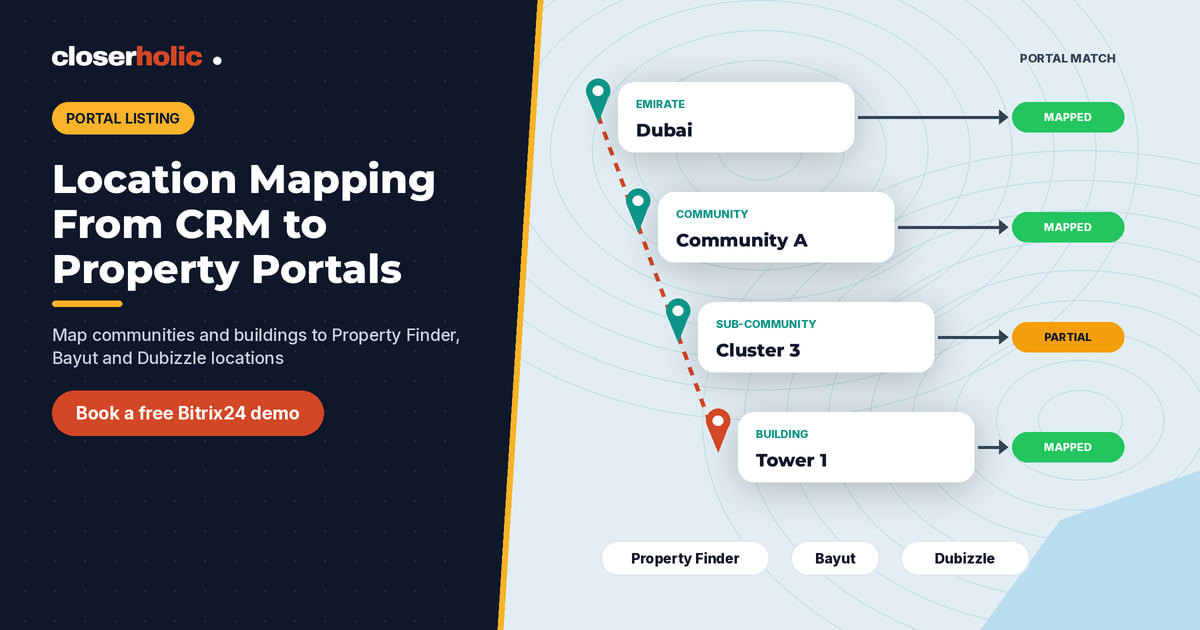
Most UAE brokerages need four levels in the CRM:
- Emirate (Dubai, Abu Dhabi, Sharjah and so on)
- Community (for example, Dubai Marina or Arabian Ranches)
- Sub-community or cluster, where it exists
- Building or project, where it exists
Make every level a list field, not a text box, and, where your CRM setup allows, filter each level by the one above, so an agent cannot pick a building that belongs to a different community. Our CRM-to-portal listing glossary explains the terms if your team uses them differently.
Step 2: build a master location table
Create one table, owned by one person, that lists every location your agency actually lists in. Do not try to copy every location in the UAE. Start with your active stock and grow it as new instructions arrive.
| CRM location (full path) | Property Finder location | Bayut location | Dubizzle location | Status | Checked on |
|---|---|---|---|---|---|
| Dubai › Community A › Tower 1 | Matching portal entry | Matching portal entry | Matching portal entry | Mapped | Date |
| Dubai › Community B › Cluster 3 | Matching portal entry | Nearest parent only | Matching portal entry | Partial | Date |
| Sharjah › Community C › New project | Not found | Not found | Not found | Requested | Date |
Store the portal's own identifier for each location wherever your integration or feed uses one, not just the name. Names can look identical across two communities; identifiers do not.
Step 3: decide what happens when there is no exact match
New buildings and off-plan projects often appear in your CRM before they exist on every portal. Agree a rule in advance:
- Map to the nearest correct parent, such as the community or sub-community, and flag the row as Partial.
- Never map to a neighbouring community because it is "close enough". A wrong location is worse than a less specific one.
- Request the missing location from the portal. Bayut's help centre, for example, asks for the full location name, a tenancy contract or Ejari (for Dubai), coordinates, a brochure or developer website showing the project name, and the title deed. Keep these on the listing record so the request is quick.
- Review Partial rows monthly and update them once the portal adds the location.
Want to see how a controlled location list and mapping table could work in your CRM? Book a free 30-minute Bitrix24 demo and we will walk you through it.
Step 4: connect the mapping to publishing
Whether you publish through a portal integration or an XML feed, the publishing step should read the portal location from your master table, not from whatever the agent typed. Bayut's help centre notes that bulk syncing from an external CRM to Bayut and dubizzle uses an XML feed shared as a publicly accessible URL, which their system reads to sync updates.
Two safeguards help:
- Block publishing when a mapping is missing. A listing with an unmapped location should stop at review, not go out with a blank or guessed value.
- Show the mapped portal location on the listing record, so the reviewer can see exactly where it will appear.
If you already run a review step, add location to it. Our listing approval workflow shows where that check fits.
Step 5: check results after publishing
Mapping errors usually show up in one of three ways: a listing is rejected or fails to sync, it appears under the wrong area, or it gets far fewer views than similar stock. On Bayut, listings that failed to sync from an XML feed can be viewed under the Rejected Properties tab with the "Sync Failed" filter, according to its help centre.
Build a short routine:
- After each new location is added, search for one test listing on each portal and confirm its area.
- Weekly, review failed or rejected listings and note whether location was the cause.
- Monthly, compare your mapping table with the portal lists and close any Partial rows you can.
Mistakes to avoid
- Free-text location fields. They guarantee inconsistent spellings.
- Mapping by name only. Similar names exist in different emirates and communities.
- Letting each agent fix mappings. One owner keeps the table trustworthy.
- Forgetting the website. If your site reads listings from the CRM, it should use the same location list, so your area pages and portal listings agree.
- Ignoring master developer naming changes. When a community or project is renamed, update the CRM list and the mapping on the same day.
How this fits the bigger picture
Location mapping is one part of a reliable CRM-to-portal setup. For the overall flow, read publishing listings from CRM to Property Finder, Bayut and Dubizzle. To keep details aligned after go-live, see keeping listings synced across portals, and for the errors we see most often, 5 mistakes when listing from CRM to UAE portals.
Closerholic connects Bitrix24 and custom real estate CRMs to Property Finder, Bayut and Dubizzle for UAE agencies, with controlled location lists, portal mapping and review steps built in. If your listings keep landing in the wrong area, book a call.