Days-on-Market Reports in a Custom Real Estate CRM: A Walkthrough
👉 Book a free 30-minute Bitrix24 demo
It is Monday's sales meeting. The manager asks a simple question: "Which of our listings have been sitting too long?" One agent says the Marina apartment "only went live recently". Another thinks the townhouse has been up "a couple of months". Nobody is sure, because the only record of when a listing started is buried in old emails and portal dashboards.
Stale stock ties up agent time, frustrates owners and can make your portal profile look tired. Yet many agencies cannot answer the basic question of how long each listing has been on the market, let alone why. A days-on-market report in a custom real estate CRM fixes that by turning dates you already have into a weekly list of listings that need attention.
This walkthrough explains which fields to capture, how to calculate ageing fairly, how to group listings into buckets and what each bucket should trigger. The thresholds below are examples, not benchmarks; set your own based on your market, property type and owner agreements.
Why days on market belongs in the CRM
Portals show you how a listing performs on that portal. Your CRM is the only place that sees the whole life of a listing: when the owner signed, when the photos were ready, when it went live, every price change, every viewing and every offer. If you publish listings from your CRM to the portals, the CRM already knows the most important date of all: the day the listing went live.
Keeping the report in the CRM also means one definition for everyone. When the manager, the agent and the owner all look at the same number, the conversation moves from "it feels like a while" to "it has been live for this many days, and here is what we have tried".
Step 1: Capture the right dates
An ageing report is only as good as its dates. In your listing record, make these fields mandatory at the right stage rather than all at once:
- Mandate date: when the owner agreement was signed or the listing was accepted.
- First live date: the first day the listing appeared publicly, set automatically when the status changes to Live.
- Last price change date: updated every time the asking price or rent changes.
- Last refresh date: when photos, title or description were last improved.
- Off-market date: when the listing was paused, withdrawn, rented or sold.
The key rule: dates should be set by status changes wherever possible, not typed by hand. If an agent can type any first live date they like, the report becomes a negotiation.
Step 2: Decide how you count
"Days on market" sounds obvious until you try to calculate it. Agree on these definitions before you build anything:
- Total days on market: today minus first live date, for listings that are still live.
- Days since last price change: useful for spotting listings where a price review is overdue.
- Paused time: decide whether days spent paused (owner travelling, tenant still in place) count. Most teams exclude them and keep a separate "paused days" field.
- Relisting: if a listing is withdrawn and relisted, decide whether the clock resets. Keeping the original first live date alongside a "current run" date gives you both views.
Write these rules down in one place before anyone asks why their listing looks older than expected.
Step 3: Group listings into ageing buckets
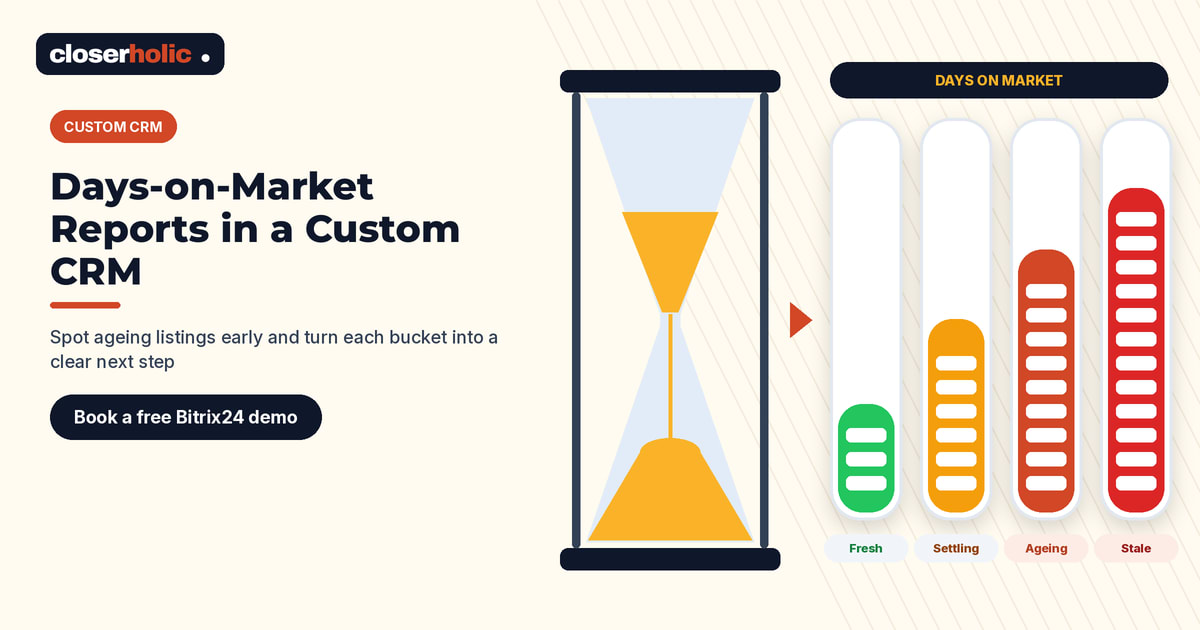
A long list of numbers is hard to act on. Buckets make the report readable at a glance. A simple starting set looks like this:
| Bucket | Example range | What it usually means |
|---|---|---|
| Fresh | First weeks live | Watch enquiries and viewing requests; no action yet |
| Settling | Next few weeks | Check enquiry quality and listing content |
| Ageing | Beyond your review point | Owner conversation about price, presentation or terms |
| Stale | Well beyond review point | Decide: reprice, refresh, pause or release |
Set the ranges separately for sales and rentals, and possibly for ready and off-plan units, because they move at different speeds. Store the bucket as a calculated field so it can drive filters, colours and automation.
Step 4: Add the context that explains the age
Age alone does not tell you what is wrong. A listing that is old with plenty of viewings has a different problem from one that is old with no enquiries at all. Show these numbers next to days on market, all pulled from activity already logged in the CRM:
- Enquiries received since first live date
- Viewings completed
- Offers received
- Number of price changes
- Last owner update date
A useful way to read the combination: many enquiries but few viewings often points to price or a listing that does not match reality; many viewings but no offers often points to the property itself, its condition or terms; few enquiries at all often points to presentation, portal placement or price. These are prompts for a conversation, not verdicts.
Want to see what an ageing view could look like on your own listings? Book a free 30-minute Bitrix24 demo.
Step 5: Turn buckets into actions
The report earns its place when each bucket triggers a clear next step. In a Bitrix24-based custom CRM, this is where automation rules on listing stages come in. Examples:
- Entering Ageing: create a task for the listing agent to prepare an owner update with activity numbers and a recommendation.
- Price change logged: reset the "days since last price change" counter and remind the agent to check the update reached every portal.
- Entering Stale: notify the team lead and add the listing to the weekly review list.
- No owner update in a set period: create a reminder so owners are never left wondering what is happening.
Keep the actions human. The CRM can flag and remind; the agent and manager still decide whether to reprice, refresh the content or have a frank conversation with the owner.
Step 6: Build the weekly review view
Create one saved view for the weekly meeting: live listings only, sorted by bucket and then by days on market, with the context columns visible. Each agent should be able to see their own listings; managers see the whole portfolio. A short review of this view each week stops listings drifting quietly into the stale bucket.
The same data makes owner reporting easier. When an owner asks why their property has not moved, the agent can show real activity rather than reassurance. If your team already sends synced listings to Property Finder, Bayut and Dubizzle, a consistent first live date also helps you compare the same listing across portals.
Common mistakes
- Hand-typed dates. Set dates from status changes so the report cannot be gamed.
- One threshold for everything. Sales, rentals and off-plan units need their own buckets.
- Counting paused time. A listing paused at the owner's request is not ageing in the market.
- Report without action. If nothing happens when a listing turns stale, people stop looking.
Where to start
You do not need a full analytics project. Start with first live date set automatically, a calculated days-on-market field and two buckets. Add context columns and automation once the team trusts the numbers. If you are still deciding whether a tailored setup is right for you, our guide to custom CRM for real estate covers the bigger picture.
Closerholic designs custom real estate CRMs on Bitrix24 for UAE brokerages, including listing records, ageing reports and the automation around them, and connects them to Property Finder, Bayut and Dubizzle. If you would like to see how a days-on-market view could work for your portfolio, book a call.