From Spreadsheets to a Custom Real Estate CRM: A Data Migration Plan
👉 Book a free 30-minute Bitrix24 demo
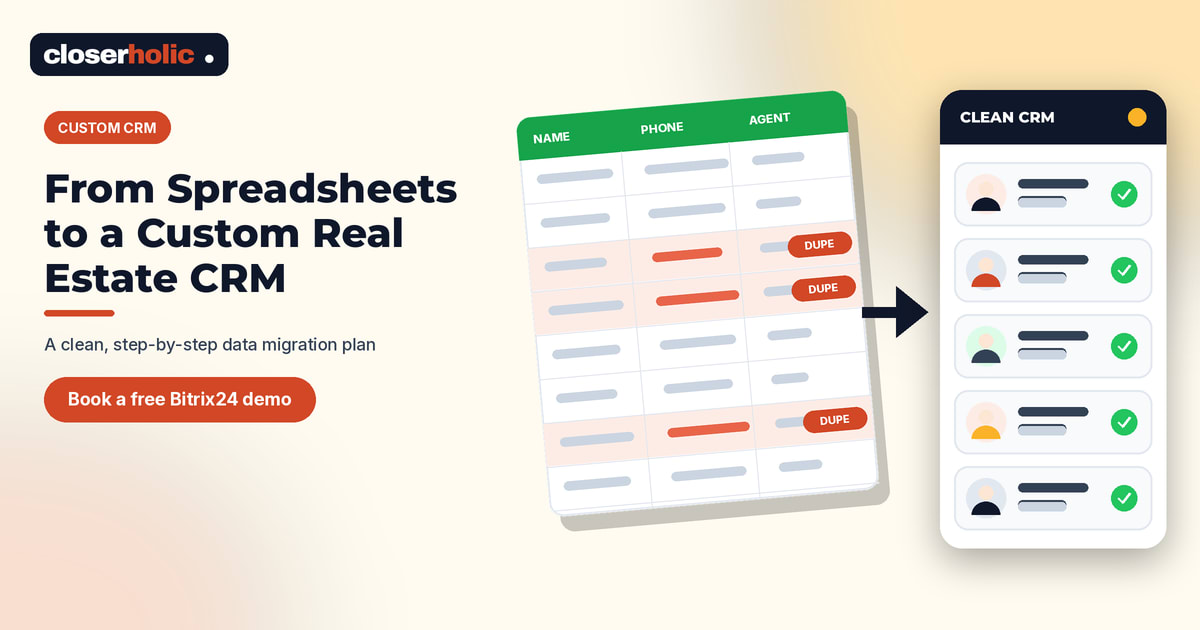
Most UAE brokerages start in a spreadsheet. One tab for buyers, another for landlords, a third for listings, and a personal sheet for every agent who "keeps it a bit differently." It works until the team grows, someone leaves, or the same buyer is called by three agents on the same day.
Moving to a custom real estate CRM fixes that, but only if the data arrives clean. This guide gives you a practical spreadsheet to real estate CRM migration plan: what to move, what to leave behind, how to prepare your columns and how to import safely. The examples are illustrative, not real client data.
Step 1: Collect every sheet in one place
Before anything else, list every spreadsheet, shared drive folder and exported file that holds client or property data. Include the ones on agents' laptops and the contacts saved in phones if your team uses them for business.
- Name an owner for each file.
- Note when it was last updated.
- Mark whether it holds buyers, tenants, landlords, owners, listings, deals or something else.
This inventory usually shows how much overlap exists. That overlap is exactly what you will clean in Step 3.
Step 2: Decide what moves and what stays behind
Not every row deserves a place in your new CRM. A simple filter keeps the system useful from day one.
| Data type | Move to CRM? | Suggested rule |
|---|---|---|
| Active buyer and tenant enquiries | Yes | Anyone contacted or enquiring within a period your team agrees |
| Landlords and owners | Yes | All current relationships |
| Live listings | Yes | Everything currently marketed |
| Deals in progress | Yes | Open deals with their current stage |
| Old, cold enquiries | Maybe | Archive in a separate file, import later if needed |
| Closed deals from past years | Maybe | Keep a reference export; import only if reporting needs it |
Agree the cut-off with your team leaders, and write it down. Check with your legal or compliance adviser on what personal data you may keep and for how long.
Step 3: Design the fields before you touch the data
A custom CRM is only as good as its structure. Decide the fields first, then shape your spreadsheet to match them, not the other way around. If you want a deeper look at structure, read our guide to modelling CRM data before building the interface.
Typical real estate fields to define:
- Contact: first name, last name, mobile with country code, email, language, contact type (buyer, tenant, landlord, owner).
- Source: a fixed list such as Property Finder, Bayut, Dubizzle, website, WhatsApp, referral, walk-in.
- Interest: purpose (buy, rent, invest), area, property type, budget range, bedrooms.
- Ownership: the responsible agent, picked from the user list rather than typed.
- Deal: stage, expected value, linked contact and linked unit or listing.
Our article on when a tailored Bitrix24 setup makes sense explains how custom fields and pipelines are built around your process.
Step 4: Clean the data
Cleaning is the least glamorous step and the one that decides whether your team trusts the CRM. Work through these checks in your spreadsheet before importing anything.
- Split names. Put first name and last name in separate columns. Bitrix24's own guidance for importing deals linked to contacts depends on first and last names being entered consistently.
- Standardise phone numbers. Use one format with the country code, for example +971 followed by the number, and remove spaces and brackets that differ from row to row.
- Remove obvious duplicates. Sort by phone and by email and look for repeats. The same person may appear under two agents.
- Normalise sources and stages. "PF", "Property Finder" and "propertyfinder" should become one value.
- Fix agent names. Make sure each name matches an actual user, not a nickname.
- Check currency and units. Make sure prices are numbers in a single currency and sizes are in one unit.
- Delete empty and test rows. Rows with no name and no contact details add noise.
Step 5: Map your columns
Create a simple mapping sheet with three columns: the old spreadsheet column, the new CRM field and a note on any change. For example, "Mob" maps to Mobile phone, and "Agent" maps to Responsible. When you import, the CRM will ask you to match file columns to fields, and your mapping sheet makes that quick and accurate.
Step 6: Import in the right order
If your custom CRM runs on Bitrix24, as the setups we build do, a few points from Bitrix24's help documentation are worth planning around:
- CSV format. Bitrix24 supports import only in CSV. If your data is in Excel or XML, convert it to CSV first.
- Templates. You can download an import template and fill it in. For contacts, go to CRM, Customers, Contacts, Settings and choose the custom CSV import.
- Duplicate handling. When importing contacts and companies, you choose what happens to duplicates: allow them, replace existing data, merge (fill only empty fields) or skip them. You also choose which fields, such as phone or email, are used to detect duplicates.
- Contacts first, deals second. To import deals linked to a contact, import the contacts first, then import the deals with the contact's name in the matching column. The deals link to the contacts automatically.
- Existing deals are not updated. Import does not update existing deals, and a deal with the same name that already exists will be imported again, so avoid re-running a deals file.
- Permissions. Only administrators and employees with the right permissions can import.
If you use a different tool, check its own import rules before you start.
Step 7: Test with a small batch
Import twenty or thirty records first. Then check them as an agent would:
- Do names, phones and sources appear in the right fields?
- Are contacts linked to the correct companies and deals?
- Does the responsible agent see only what they should?
- Can you find a known client by searching their phone number?
Fix the mapping, clear the test batch if needed, and only then import the full file.
Step 8: Run both systems briefly, then close the sheets
For a short, agreed period, let agents update the CRM and keep the spreadsheet read-only for reference. Then set a clear cut-off date. After that date, the spreadsheet is archived and the CRM is the only place where work happens. If you leave the sheets editable, you will end up with two versions of the truth.
Step 9: Review after two weeks
- Ask agents what is missing or confusing.
- Look for new duplicates and fix the habit that created them.
- Add fields only where there is a real need.
For more on avoiding common pitfalls, our post on myths about custom real estate CRM fields and pipelines is a useful companion.
How Closerholic helps
Closerholic designs and implements custom real estate CRM setups for UAE and GCC brokerages, including pipelines, custom fields, permissions and portal integrations. We can help you plan the structure, prepare your data and import it with a clear cut-over date. If your spreadsheets have outgrown your team, a short conversation is a good place to begin.