Portal Listing Performance Review: A Weekly Report Template
👉 Book a free 30-minute Bitrix24 demo
Most UAE brokerages put a lot of effort into getting listings live on Property Finder, Bayut and Dubizzle, and much less into checking how those listings perform once they are out there. A unit sits online for weeks with no serious enquiries, a price drop is agreed with the landlord but never reflected, or one portal sends plenty of calls for a building while another stays silent. Nobody notices until the owner phones to ask why nothing is happening.
A short portal listing performance review every week fixes that. This post gives you a ready-to-copy report template, a 30-minute meeting agenda, and a simple menu of actions, so your listings team can spot weak listings early and fix them before the owner loses patience.
Why a weekly review beats checking portals ad hoc
Agents naturally look at their own listings when they have time, which usually means when something has already gone wrong. A fixed weekly review does three things that ad hoc checking does not:
- It looks at every active listing, including the quiet ones nobody is thinking about.
- It uses the same columns every week, so you can compare one week with the next.
- It ends with named actions and owners, not just observations.
The review works best when your CRM is the single source of truth for listings and enquiries. If you publish from your CRM, as we described in our guide to keeping listings synced across Property Finder, Bayut and Dubizzle, most of the data you need is already in one place.
What you need in place first
Before the template is useful, check that three pieces of data are captured consistently:
- A listing reference on every enquiry. When a lead arrives from a portal, it should be linked to the listing it came from. If portal enquiries still land in a shared inbox, start with our post on capturing Property Finder, Bayut and Dubizzle leads in Bitrix24.
- A source value per portal. "Property Finder", "Bayut" and "Dubizzle" should be separate source values, not one generic "Portal" option, so you can compare them.
- Clear listing statuses and dates. Record when each listing went live, its current price, and whether it is active, paused, under offer or closed.
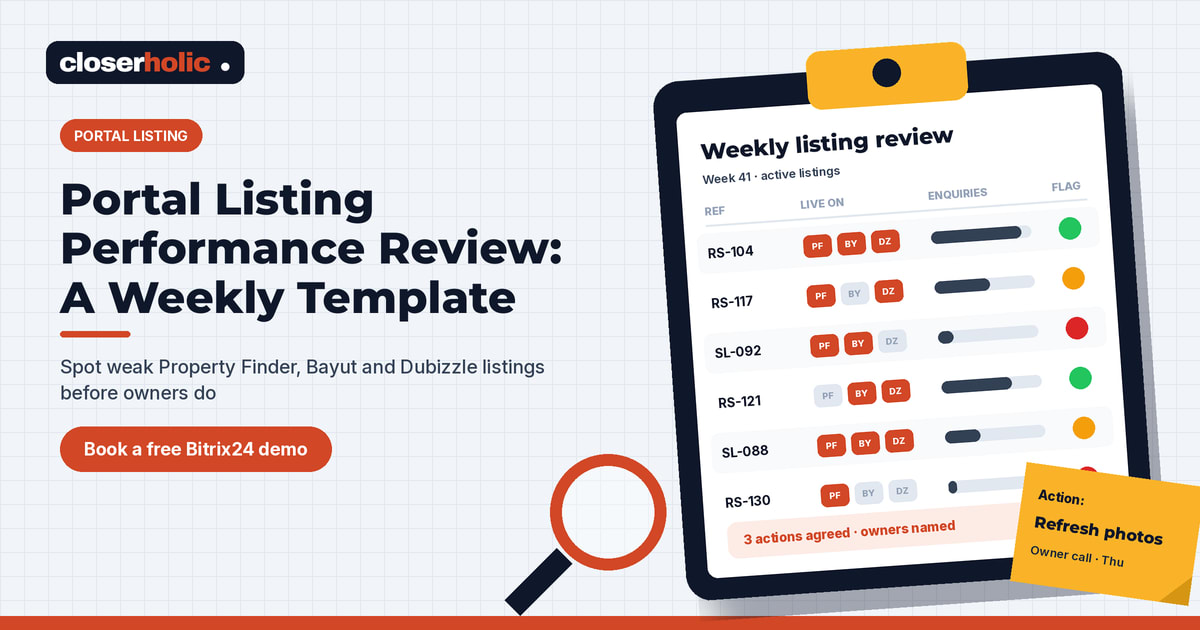
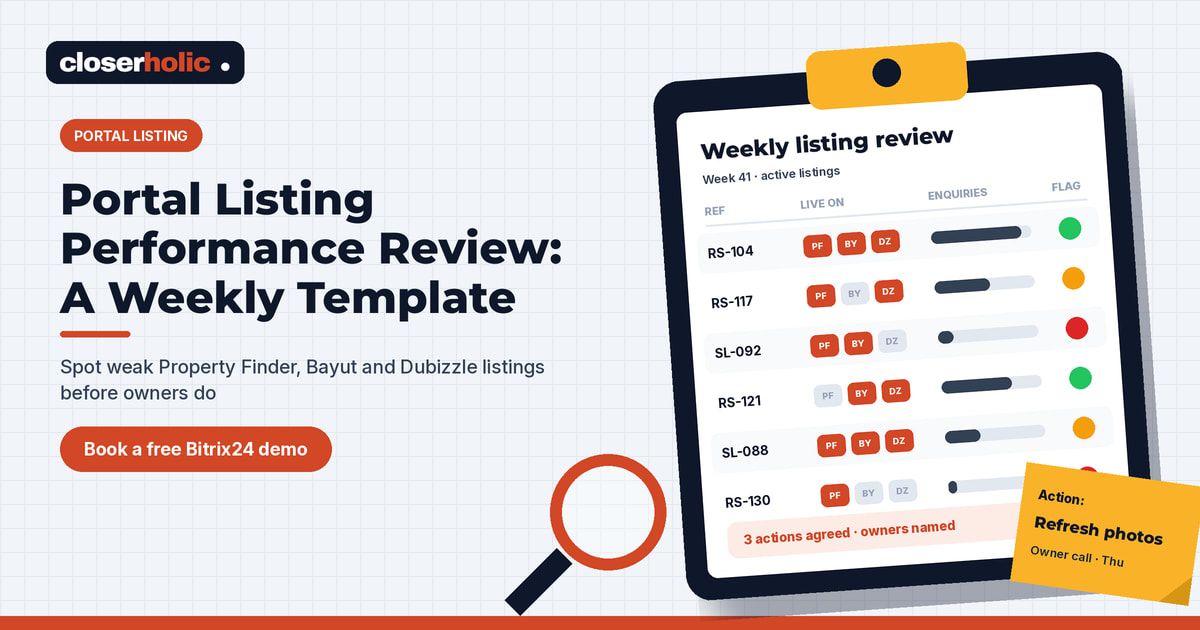
The weekly report template
Copy these columns into your CRM report or, if you are just starting, into a shared sheet. One row per active listing.
| Column | What to enter | Where it comes from |
|---|---|---|
| Listing reference | Your internal reference number | CRM listing record |
| Community / building | Location, e.g. community and tower name | CRM listing record |
| Type and size | Sale or rent, bedrooms, area | CRM listing record |
| Live on | Which portals it is currently published to | CRM listing record |
| Days live | Days since first published | Calculated from publish date |
| Current price | Asking price or annual rent today | CRM listing record |
| Enquiries this week (per portal) | New leads linked to this listing, split by source | CRM leads or deals |
| Viewings booked | Viewings scheduled from those enquiries | CRM activities or deal stages |
| Offers | Offers received to date | CRM deal stages |
| Last change | Last date price, photos or description changed | CRM history |
| Status flag | Green, amber or red (see below) | Agreed in the meeting |
| Action and owner | One action, one person, one due date | Agreed in the meeting |
If you also look at views or other statistics inside the portals' own dashboards, add a column for them, but treat your CRM enquiry counts as the main measure. Enquiries, viewings and offers are what the owner cares about.
How to read the report: green, amber, red
Agree simple rules for the status flag so the review does not turn into a debate. The thresholds below are starting points only; set your own based on your market segment and history.
Green: performing
The listing is generating enquiries that turn into viewings. No action needed beyond normal follow-up.
Amber: watch
Enquiries are arriving but few become viewings, or one portal performs and the others do not. This usually points to a mismatch between the listing and reality: the photos oversell, the price in the description differs from the price field, or the location detail is vague.
Red: act now
The listing has been live for a while with almost no enquiries, or it has not been touched since it went live. Something about price, presentation or visibility needs to change this week.
Want this report built into your CRM instead of a spreadsheet? Book a free 30-minute Bitrix24 demo and we will show you how it can look with your own listings.
The 30-minute meeting agenda
- Minutes 0 to 5: confirm last week's actions were completed.
- Minutes 5 to 20: go through every red listing, then every amber one. Agree one action each.
- Minutes 20 to 25: compare portals. Is one portal consistently weaker for a community or property type? Note it for your marketing budget discussion.
- Minutes 25 to 30: list owners who need a call this week, with the agent responsible.
The action menu
Keep a short, fixed list of actions so decisions are quick:
- Refresh presentation: new lead photo, reordered gallery, clearer title.
- Fix the facts: correct size, furnishing status, amenities or availability date.
- Price conversation: agent calls the owner with the enquiry and viewing numbers from the report.
- Compliance check: confirm the advertising permit details are still valid and match the listing.
- Change portal mix: adjust where the listing is published, within your portal agreements.
- Withdraw: take it down everywhere if the mandate has ended or the unit is no longer available.
Whatever you change, make the change in the CRM first so every portal receives the same update. Our list of common mistakes when listing from CRM to UAE portals is a useful companion for the "fix the facts" step.
Building the review in Bitrix24
Bitrix24 CRM includes analytics that make this review easier to run:
- Report builder: under CRM > Analytics, you can create reports from templates, choose fields and columns, add filters, and show a chart. Custom fields of the string and list types can be added as report columns, so a listing reference or community field can appear in the report.
- Filters by any field: CRM Analytics reports can be filtered by standard and custom fields, and clicking a number opens the list of records behind it.
- Deals on hold: a widget in the deal reports highlights deals nobody worked on during the selected period, which helps catch enquiries that went cold.
- Sharing: report templates can be shared with colleagues, and data can be exported to Excel.
Check which analytics tools are included in your Bitrix24 plan before you design the report.
How Closerholic helps
Closerholic implements Bitrix24 for UAE real estate brokerages and connects it with Property Finder, Bayut and Dubizzle workflows. We set up listing records, source values and enquiry links so every lead is tied to a listing, then build the weekly performance report and status rules your team will actually use.