Portal Listing Rejection Fixes: A Resubmit Checklist for UAE Agencies
👉 Book a free 30-minute Bitrix24 demo
Your listing agent finishes the last photo edit, hits publish, and waits. An hour later the portal rejects the listing: incomplete permit details, a photo that fails the rules, or a category that does not match the unit. The owner is already asking why it is not live. The agent rewrites the same fields from memory and hopes the second attempt sticks.
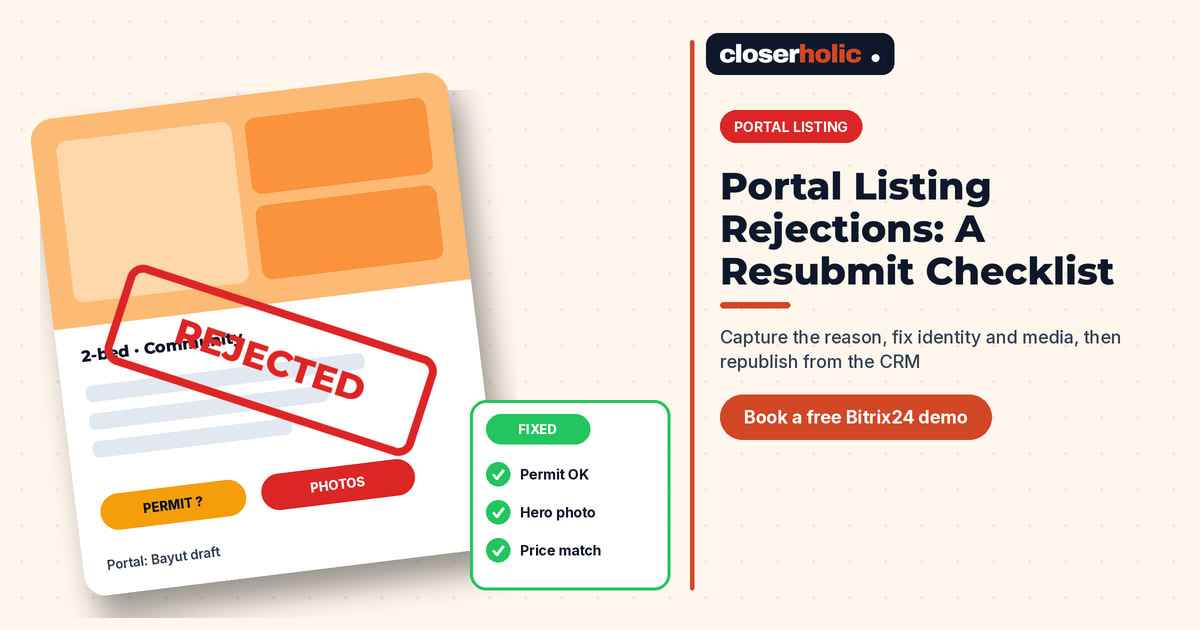
Rejections are common on Property Finder, Bayut and Dubizzle. What turns a rejection into a wasted afternoon is the lack of a clear checklist between your CRM and the portal. This post is a practical portal listing rejection resubmit checklist you can run before every retry, so the second submit is the one that goes live.
Why rejections deserve a CRM process
Portal rules change, and each portal has its own checks. The pattern that hurts agencies is the same: the rejection arrives in an email or agent phone notification, someone edits in a hurry, and nobody records what failed. Next week the same unit fails for the same reason.
If you already publish listings from your CRM to the portals, the CRM is the right place to store the rejection reason, the fields that were wrong and the date you fixed them. That history also helps when you review who should approve a listing before it goes live.
Step 0: Capture the rejection properly
Before you change anything, log these fields on the listing record:
- Portal name and the portal listing reference, if you have one
- Rejection date and time
- Exact reason text from the portal message (paste it; do not summarise yet)
- Rejected fields tagged from a short picklist: permit, photos, title, description, price, location, amenities, agent contact, category, other
- Owner informed? Yes or no, with the date
A short comment in the timeline is fine for context. The structured fields are what let you filter "all Bayut photo rejections this month" later.
Checklist A: Identity and compliance
Many rejections are identity problems, not creative ones. Work through this block first:
- Permit / listing authorisation number matches the document on file and the format the portal expects.
- Agency trade licence and RERA details on the portal account are current; a rejected listing can be a symptom of an expired account setting, not a bad unit record.
- Unit identity (community, building, unit number) matches the title deed or developer unit list. Typos here often look like "location" failures on the portal.
- Exclusive vs open status in the CRM matches what you are allowed to publish. If your team manages both, keep the rules clear as in our note on exclusive vs open listings.
- Owner consent for marketing is on file for that mandate, especially if photos include interiors of an occupied home.
Checklist B: Media and presentation
Photo and copy rejections are the next most common. Fix them in the CRM media fields, not only in a desktop folder:
- Hero image is bright, upright and not a floor plan or collage as the first frame.
- Minimum photo count for that portal and property type is met; remove blurred or duplicate frames rather than padding with weak shots.
- Floor plan is attached where required, and labelled so it is not treated as a room photo.
- Title length and keywords follow the portal's style (no ALL CAPS spam, no misleading "investor deal" language if the unit does not support it).
- Description matches the facts on the record: beds, baths, size, parking, view and community amenities.
- Amenity tags in the CRM map to the portal's tag list; inventing a tag that the portal does not recognise can fail validation.
If your team already follows common CRM-to-portal listing mistakes, treat a media rejection as a standards gap, not a one-off.
Want a listing record that stores rejection reasons and blocks republish until the checklist is green? Book a free 30-minute Bitrix24 demo.
Checklist C: Price, availability and contact
- Asking price or rent matches what the owner approved, including whether service charges or VAT language is allowed in that field.
- Availability date is realistic; portals often reject or flag dates in the past for rentals.
- Furnishing status matches the photos.
- Listing agent contact on the portal is an active agent on your roster, with a working phone and WhatsApp number.
- Category (sale, rent, short-term where relevant) matches the mandate. A sale unit pushed as rent is a classic hard reject.
Checklist D: Before you click resubmit
- Change status in the CRM from Rejected to Ready to republish only when every failed field has a new value and a "fixed on" date.
- Confirm the same unit is not already live under another portal ID (your team should also watch for synced listings across Property Finder, Bayut and Dubizzle).
- Republish from the CRM mapping, not from a manual portal form, so the fix stays in one place.
- Watch for the live confirmation, then set first-live or re-live date correctly.
- Send the owner a short update: rejected for X, fixed, live again.
Turn rejections into a weekly review
Once a week, filter listings where rejection count is greater than zero. Group by reason tag. If the same three reasons dominate, fix the upstream form: make permit number mandatory, block publish without a hero image, or require a second pair of eyes for price. The checklist is for the agent; the weekly review is for the process.
Where Closerholic fits
Closerholic builds Bitrix24-based listing workflows for UAE brokerages, including approval steps, portal mapping and the fields that make rejection history useful. We keep portal talk generic and accurate: we do not invent API behaviour, and we design around the checks your team actually sees in day-to-day publishing.
If rejections are eating half a day every week, bring one recent rejection email to a call and we will show how the checklist would sit on your listing record.