Sale vs Rental Listings: The CRM Fields That Differ Before Portals
👉 Book a free 30-minute Bitrix24 demo
An agent copies last month's sale listing to create a new rental for the same tower. The price field still reads as a sale price, the furnishing field is blank, and the "available from" date is missing. The listing goes to the approval queue, comes back with three comments, and the unit loses another day off the portals.
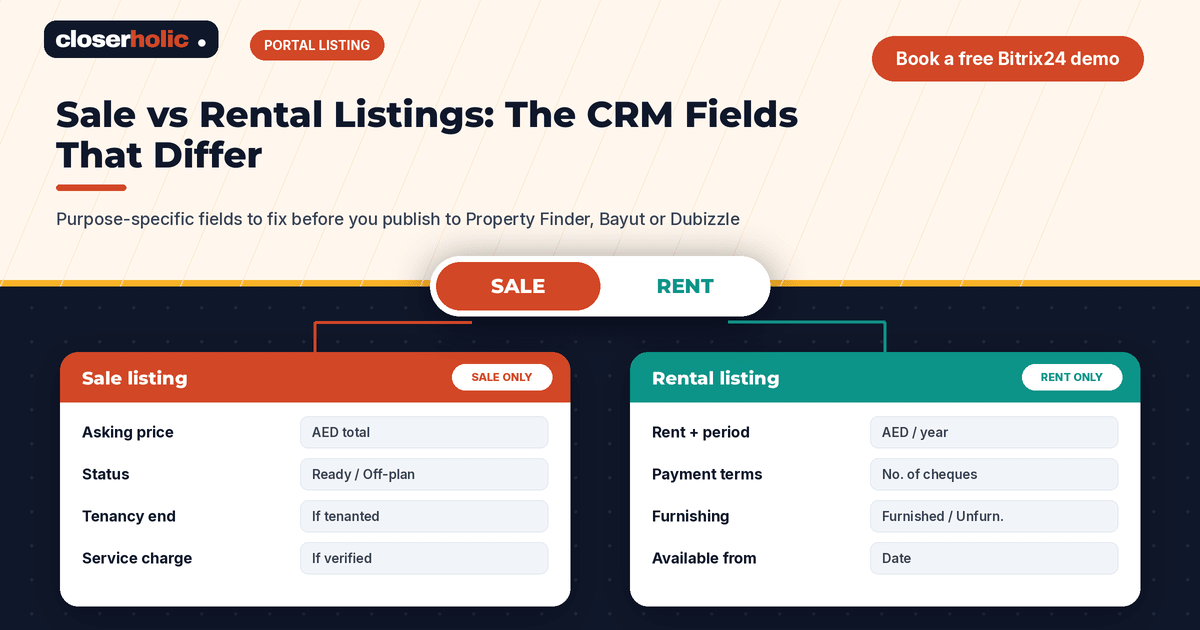
Sales and rental listings look similar, but they are not the same thing. They need different information, different checks and, often, different people to approve them. This comparison breaks down the sale vs rental listing fields your CRM should hold before anything is published to Property Finder, Bayut or Dubizzle, and shows how to stop one template from serving both badly.
A quick note: each portal sets its own field names, required values and formats, and these change over time. Use this guide to organise your CRM, then check each portal's current specification or your integration partner before mapping fields.
Why one listing template fails both teams
When a CRM uses one form for every listing, two things usually happen. Either every field is optional, so rental listings go out without a move-in date, or every field is required, so agents type "N/A" into sale fields that do not apply. Both create poor data and slow approvals.
The fix is a shared core of fields plus a small set of purpose-specific fields that appear, and become required, only when they apply.
The shared core: fields every listing needs
- Internal reference: your own unique listing ID, used to match the CRM record with each portal listing.
- Permit or advertising reference: whatever your regulator requires for advertising that unit, stored in a dedicated field rather than in the description.
- Location: emirate, community, sub-community or building, chosen from a controlled list.
- Property type and size: apartment, villa or townhouse; bedrooms, bathrooms and area with a consistent unit.
- Media: photos in the agreed order, plus floor plan and video if you have them.
- Title and description: written to your content standard.
- Listing agent: the person responsible, with their own licence details on their profile.
- Owner or landlord link: the contact who authorised the listing, plus the authorisation document.
Side-by-side: sale vs rental fields
| Area | Sale listing | Rental listing |
|---|---|---|
| Price | Total asking price | Rent amount plus the period it covers (for example yearly or monthly) |
| Payment terms | Cash or mortgage-friendly note if you choose to state it; payment plan details for off-plan | Payment terms such as the number of cheques, where you state them |
| Status | Ready or off-plan; vacant or tenanted | Vacant or occupied; available-from date |
| Furnishing | Optional, often less important | Usually important: furnished, semi-furnished or unfurnished |
| Off-plan details | Developer, project and expected handover, where you are authorised to advertise them | Not usually relevant |
| Existing tenancy | Lease end date and rent if tenanted, so investors can judge it | Not applicable |
| Running costs | Service charges, if you hold verified figures | What is included or excluded, if you state it |
| Viewing access | Owner or tenant notice needed | Key location and current occupant notice |
Not every field above will exist on every portal. The point is to hold the information in your CRM once, accurately, so any integration or upload can use it.
How to set this up in your CRM
1. Make "purpose" the first choice
Put a required Listing purpose field (Sale or Rent) at the top of the form. Everything else depends on it.
2. Show only relevant fields
Group sale-only and rental-only fields into separate sections, so agents are not distracted by fields that do not apply. In Bitrix24, many teams handle this with separate pipelines or a dedicated listings item built with Smart Process Automation, each with its own form layout.
3. Make the right fields required at the right stage
Do not demand everything at the first step. Require the core fields when the listing is created, and the purpose-specific fields before it moves to "Ready for approval".
4. Keep price units unambiguous
Store rent as an amount plus a period, never as free text like "85k/yr". Store sale prices as a plain number in one currency. This alone prevents a surprising share of approval comments.
5. Validate before publishing
Your listing approval step should include a purpose-specific checklist. Our listing approval workflow post shows who checks what.
Want a listing form that adapts to sale or rent without extra clicks? Book a free 30-minute Bitrix24 demo and we will walk you through a setup.
When a unit switches from rent to sale
Landlords change their minds. A unit that was for rent may go on the market for sale, or the other way round. Resist the urge to edit the old listing's purpose field. Instead:
- Close the old listing in the CRM with a clear reason, and take it down from the portals using your normal routine. Our listing takedown playbook covers the steps.
- Create a new listing linked to the same unit and owner, with the new purpose and its own fields.
- Get a fresh authorisation and, where required, a new advertising permit for the new purpose.
- Keep the history of both on the unit record, so reports on enquiries and days live stay honest.
Mistakes to avoid
- Cloning across purposes. Cloning a sale listing to make a rental carries over the wrong price logic and status.
- Hiding terms in the description. If payment terms or availability matter, give them their own fields so they can be checked and reported on.
- "N/A" everywhere. If agents type N/A often, a field is probably on the wrong form.
- Different spellings of the same community. Use a controlled list, as covered in our CRM-to-portal listing glossary.
Bringing it together
A clean split between sale and rental fields makes approvals faster, portal uploads cleaner and reports more reliable. It also makes it easier to keep every portal in step, which we discuss in how to keep listings synced across Property Finder, Bayut and Dubizzle. If you are starting from scratch, begin with publishing listings from CRM to the portals.