Bitrix24 CoPilot in CRM: A Practical Guide for Real Estate Teams
👉 Book a free 30-minute Bitrix24 demo
An agent finishes a twelve-minute call with a buyer. The buyer mentioned a budget, two communities, a preference for a higher floor, a mortgage pre-approval in progress and a viewing window next Tuesday. By the time the agent has driven to the next appointment, half of that is a vague memory, and the CRM record still says "Interested in 2BR".
That gap between the conversation and the CRM is exactly what Bitrix24 CoPilot in CRM is built to close. CoPilot is Bitrix24's AI assistant, and inside leads and deals it can transcribe calls, summarise conversations and fill in CRM fields. This guide explains what it does according to Bitrix24's own helpdesk, how to prepare your real estate CRM so it works well, and where human judgement still matters.
What CoPilot in CRM does
Calls
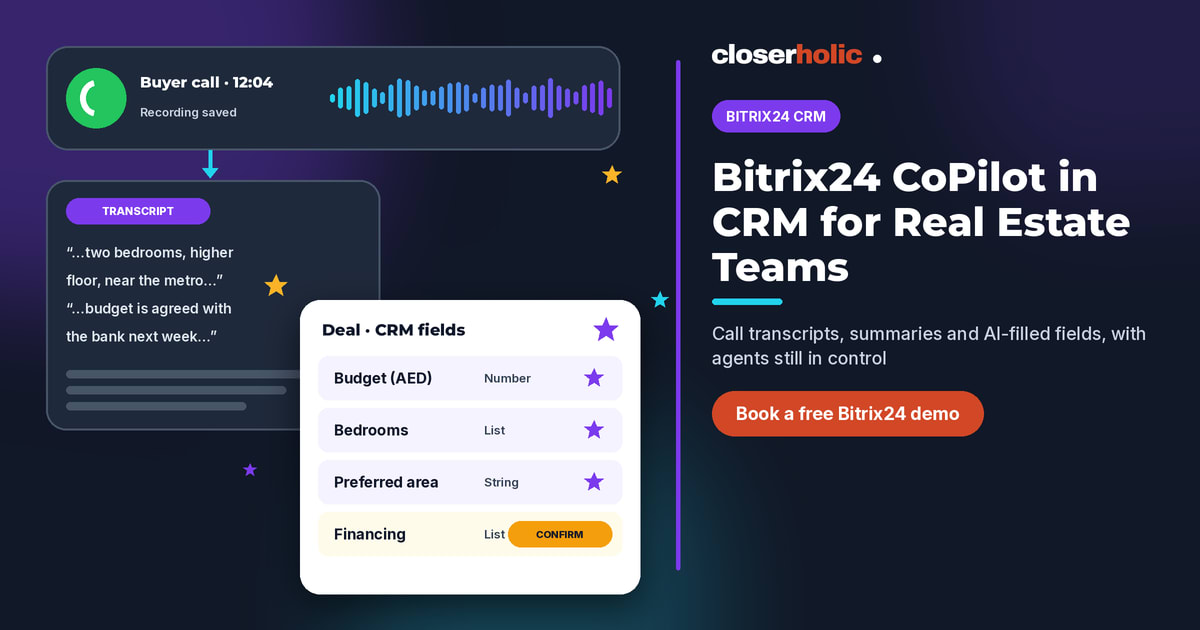
Bitrix24's helpdesk describes call processing in three steps: transcription, a call summary and automatic field updates. From the call activity in a lead or deal timeline, the CoPilot menu also offers:
- Transcribe recording: converts the call audio into searchable text.
- Call summary: a short overview of the main points.
- Complete fields: adds data from the call to empty fields in the form.
- Assess call: scores the conversation, including against a sales script you define.
- Create activity from call: creates a follow-up activity based on the conversation.
- Process call: runs transcription, summary, field filling and activity creation at once.
CoPilot transcribes in the language spoken on the call. Each user can choose a separate language for summaries and field values, set per lead section and per deal pipeline. For bilingual teams, that means a conversation in one language can still produce a summary in the language your managers read.
Chats
For chats linked to leads and deals, CoPilot creates a summary and fills in fields. You start chat analysis manually, during or after the conversation, and can re-run it when new details appear. The helpdesk lists minimum requirements: the messages must total at least 1,000 characters (excluding spaces), and at least 30 seconds must have passed since the last message.
Emails
CoPilot can also process emails in the CRM timeline. By default, according to the helpdesk, it automatically processes the first incoming email in leads and deals; you can switch to manual launch or automatic processing of all incoming, outgoing or all emails. Bitrix24 notes that email processing is available on commercial plans and depends on your Bitrix24 domain zone, so check availability on your account.
How field filling really works
This is the part that matters most for data quality:
- CoPilot fills empty fields. If a field already has a value, it suggests a change instead of overwriting it, and the item shows an Action required status until someone confirms.
- For calls, it works with String, List, Number and Integer fields. For chats, the helpdesk lists String, Number and Integer.
- Filled fields are marked with an icon, and in Kanban view you can see whether fields were completed or need action.
That last point is useful for managers: a quick look at the Kanban shows which deals have suggested changes waiting for an agent to review.
Want to see CoPilot on a real estate pipeline before you switch it on? Book a free 30-minute Bitrix24 demo with Closerholic.
Prepare your real estate CRM for CoPilot
Bitrix24's CoPilot course gives two simple tips: use clear, plain field names, and split information into separate fields instead of one big "Comment" box. For a brokerage, that translates into:
| Instead of | Create | Field type |
|---|---|---|
| "Notes" with everything | Budget (AED) | Number |
| "Reqs" | Bedrooms | List |
| "Area pref" | Preferred community | String |
| "Fin" | Financing (cash / mortgage) | List |
| "Purpose?" | Buying to live or invest | List |
Because the supported types are limited, plan which fields CoPilot should own. Dates, for example, are not in the listed types, so a move-in date or viewing time is still best entered by the agent or captured in the summary.
Switch it on step by step
- Enable CoPilot in CRM in your Bitrix24 settings. Bitrix24's CoPilot FAQ explains that you can choose which sections CoPilot is available in from the Settings page under CoPilot preferences.
- Check permissions. An employee needs edit rights on the relevant CRM items; for example, processing calls in leads requires permission to edit leads. Our Bitrix24 CRM access permissions guide helps you plan roles.
- Set the summary language via CRM → Leads or Deals → settings (gear) → CoPilot.
- Connect telephony and call recording, because CoPilot works from recordings. The helpdesk lists calls from 10 seconds to 1 hour, with a file of at least 60 KB.
- Pilot with one team and one pipeline for two weeks before rolling it out to everyone.
Use sales scripts for coaching, not policing
With AI speech analytics, CoPilot can check a call against a sales script, give a script match score, highlight what went well and what was missed, and build an agent rating over time. For a brokerage, a short script for the first call with a portal lead, covering budget, timing, financing and next step, is a good start. Share the results in one-to-one coaching rather than leaderboards, so agents see it as help.
Where people still matter
- Review suggested changes. CoPilot proposes, the agent confirms. Price, unit numbers and dates deserve a second look.
- Be transparent about recording. Follow your company policy and local rules on informing clients that calls are recorded.
- Keep the follow-up personal. A summary helps you remember; it does not replace a thoughtful message. Pair it with the routines in our Bitrix24 automation rules for real estate follow-up.
Next steps
CoPilot is most useful when the CRM underneath is clean: clear pipelines, sensible fields and channels connected. If WhatsApp and portal chats are not in Bitrix24 yet, start with WhatsApp and Open Channels in Bitrix24, and use our Bitrix24 implementation checklist to check the foundations.