Bitrix24 CRM Access Permissions: A Role-by-Role Guide for Brokerages
👉 Book a free 30-minute Bitrix24 demo
In a busy brokerage, the CRM holds some of the most sensitive information in the business: landlord phone numbers, buyer budgets, commission figures and the full contact database your agents have built over years. Give everyone access to everything and you risk data walking out the door when an agent leaves. Lock it down too tightly and managers cannot coach, coordinators cannot help, and leads get stuck.
Bitrix24 handles this with role-based access permissions in CRM. This guide explains how they work, based on Bitrix24's own Helpdesk documentation, and then suggests a practical starting setup for each role in a typical UAE real estate team.
How Bitrix24 CRM access permissions work
Permissions are configured in CRM > More > Settings > CRM access permissions. Only administrators, and users who have been given permission to edit CRM settings, can change them. Availability of some options can depend on your Bitrix24 plan, so check your plan before you design around a specific feature.
Roles
CRM comes with two default roles. Administrator has full access to all CRM items and settings. Manager can view, create and edit their own items. You can add new roles, clone an existing role and adjust it, rename roles, and hide roles you are not working on.
Actions
For each type of CRM item, such as leads, contacts, companies, deals in each pipeline and Smart Process (SPA) items, you choose what a role can do. Actions include read, add, edit, delete, export and import, plus options such as changing the item form layout, managing automation rules, seeing stage totals on the Kanban, and moving items between stages.
Access levels
Each action gets an access level. The main options are:
- Only the user's own items (where they are the responsible person)
- Items owned by their department, or by their department and subdepartments
- Items owned by their team, or by their team and subordinate teams
- Items marked “Available to everyone”
- All items
You can also set permissions by stage. For example, everyone could see leads in the first stage, while later stages are limited to the responsible agent.
Who gets which role
Roles can be assigned to individual employees, departments, teams, workgroups and preset user groups. One rule is easy to miss: if a user has several roles, Bitrix24 applies the highest level of access. So if one role blocks exporting and another allows it, that person can export. Bitrix24 includes a view that shows every role assigned to an employee, which is worth checking whenever access seems wrong.
A role-by-role starting point for brokerages
Every brokerage is different, so treat this as a draft to discuss, not a rulebook.
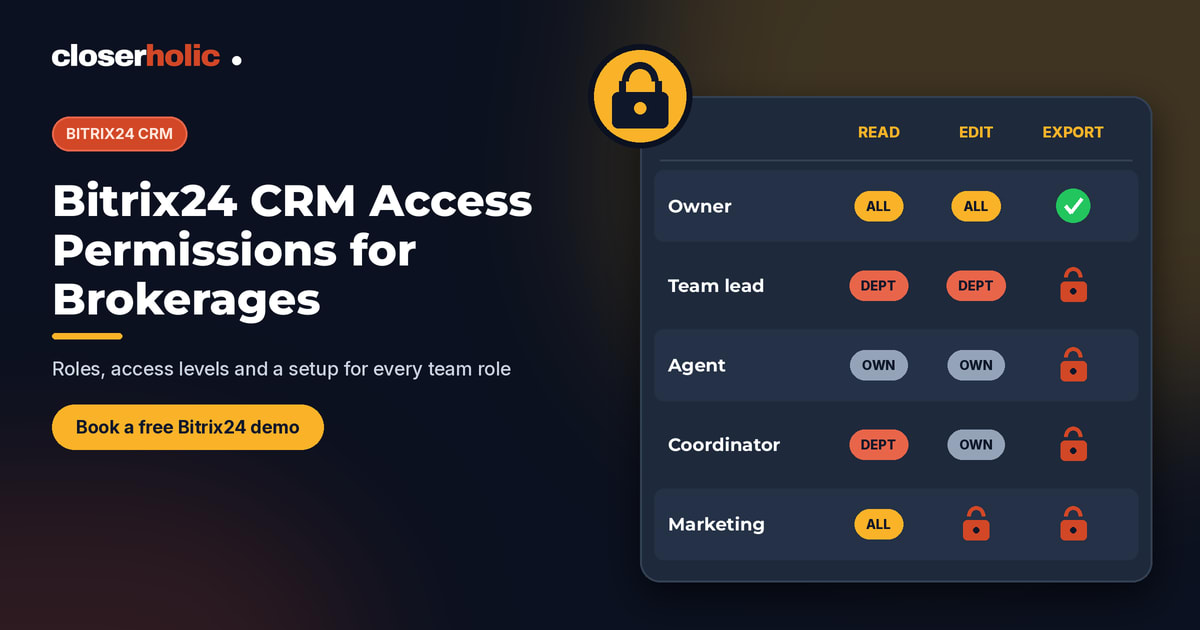
| Team role | Read | Edit | Export |
|---|---|---|---|
| Owner / managing director | All items | All items | Allowed |
| Sales or leasing team leader | Department and subdepartments | Department | Usually blocked or limited |
| Agent | Own items (plus shared first-stage leads if you use a pool) | Own items | Blocked |
| Listing coordinator | Property records and relevant deals | Property records | Blocked |
| Call centre / lead qualifier | Leads | Leads in early stages | Blocked |
| Marketing | Leads and contacts for reporting | Limited | Approval-based |
| Admin / finance | Deals at closing stages | Closing-stage fields | As needed |
Owner or managing director
Full visibility is normal here. Still, consider keeping day-to-day editing of settings with a named CRM administrator, so changes are deliberate and traceable.
Team leaders
Department-level read access lets team leaders coach, reassign and spot stalled deals. Bitrix24's department and subdepartment levels map neatly onto a structure such as Sales > Off-plan team and Leasing > Marina team.
Agents
Most brokerages give agents access to their own items only. That protects client relationships and reduces arguments about ownership. If you run a shared lead pool, stage-level permissions let agents see unassigned leads in the first stage without seeing everyone's live deals.
Listing coordinators
If your property inventory lives in a Smart Process, coordinators can be given edit rights there while having read-only or no access to buyer deals. This supports clean listing work, which feeds directly into publishing listings from CRM to the portals.
Call centre or lead qualifiers
Qualifiers usually need leads and early stages only. Once a lead is qualified and handed to an agent, stage permissions can remove their edit access so ownership is clear.
Want a permission design reviewed before you roll it out? Book a free 30-minute Bitrix24 demo and we will map roles to your team structure.
Remember the separate permission areas
CRM access permissions do not cover everything. Bitrix24 has separate access settings for CRM forms, for CRM documents and templates, and for some other tools. If marketing manages your website forms, give them form permissions without widening their CRM access. If finance generates documents, check document permissions separately.
Practices that prevent permission headaches
- Design on paper first. List your departments, teams and roles before touching settings.
- Use one role per department rather than one giant role. Bitrix24's Helpdesk recommends separate roles for departments and subdepartments to avoid conflicts.
- Use inherited stage permissions where you can. Setting every stage by hand creates more room for error, and Bitrix24 notes that very large numbers of roles and permissions can slow CRM down.
- Restrict export by default. Export is one of the most sensitive actions in a brokerage CRM. Grant it deliberately.
- Re-check after restructures. When people move departments, Bitrix24 advises re-saving their CRM items so permissions update correctly.
- Test with a real user account. Log in as a test agent and confirm what they can and cannot see.
- Review quarterly and at every leaver. Remove roles promptly when someone leaves the company.
How permissions fit with the rest of your setup
Access permissions work best alongside clear pipelines, ownership rules and automation. If you are still planning your rollout, our Bitrix24 implementation checklist for UAE real estate brokerages shows where permissions sit in the overall project. And if you use automation rules for follow-up, decide who is allowed to create and edit them, because that is a permission too.
How Closerholic helps
Closerholic implements Bitrix24 CRM for UAE real estate agencies and brokerages. We design roles around your real team structure, configure pipeline and stage permissions, protect sensitive actions like export, and test the setup with your people before go-live, so agents get what they need and the business keeps control of its data.