Bitrix24 Document Templates for Real Estate: Step by Step
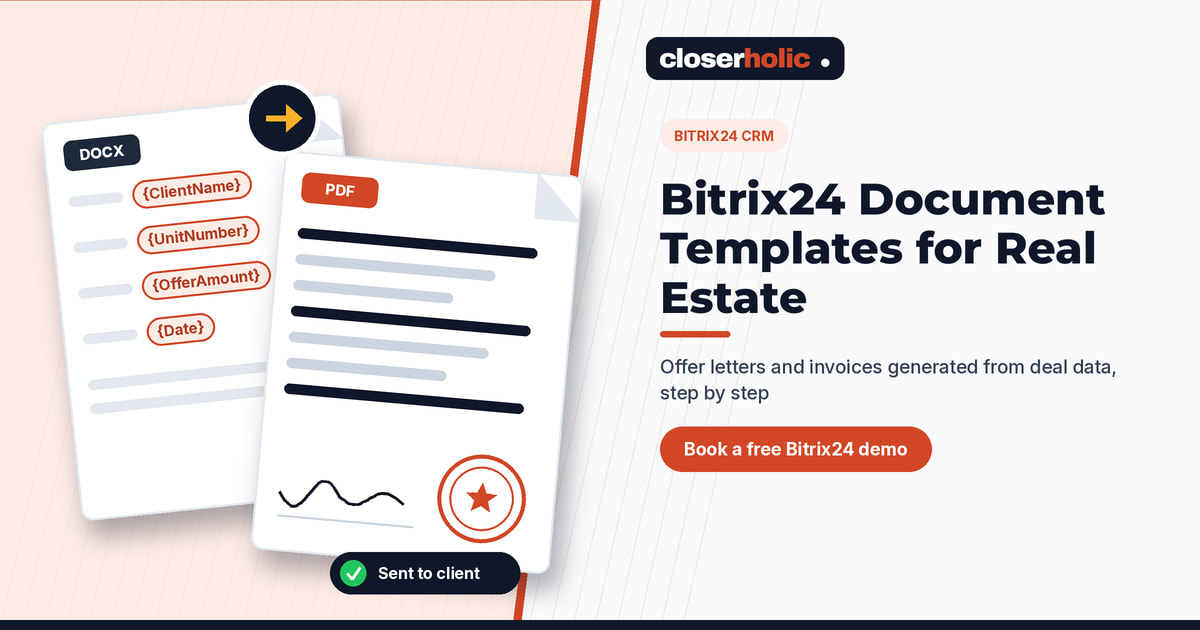
👉 Book a free 30-minute Bitrix24 demo
Think about how many documents your agents prepare in a week: offer letters, reservation confirmations, commission invoices, viewing summaries for landlords. In many brokerages each one starts the same way. Someone opens an old Word file, saves a copy, and types in the client's name, the unit, the price and the date. Then a typo slips into the price, or last month's client name stays in the second paragraph.
Bitrix24 has a built-in way to stop this. Bitrix24 document templates fill themselves in with data that is already in the CRM. This walkthrough shows how to set them up for real estate, step by step, based on Bitrix24's own Helpdesk documentation.
Step 1: List the documents worth automating
Start with documents your team creates often and that mostly reuse CRM data. Good candidates for a brokerage include:
- Offer letters to a landlord or seller
- Reservation or booking confirmations for buyers
- Commission invoices to developers or clients
- Quotes for property management or other services
Official forms that must be issued through government or regulator systems should still be completed in those systems. Use Bitrix24 for your own company documents.
Step 2: Add your company details, stamp and signature
Documents pull your company details from CRM, so set these up first. Bitrix24 lets you upload a stamp and a signature image to your company details. When creating a document, you can then choose to include them or leave them out.
Step 3: Make sure the data exists as fields
A template can only insert what the CRM stores. If your offer letter needs the unit number, community, offer amount and proposed handover date, those should be fields on the deal (or on the linked property record). Bitrix24 supports custom fields in document templates; per the Helpdesk, all custom field types can be used except "Book a Resource".
This is also a good moment to tidy fields. If agents type the community name freely, documents will show five spellings of the same area. A list field fixes that.
Step 4: Build the template in DOCX with symbolic codes
Bitrix24 templates are ordinary Word documents with symbolic codes in place of the data, for example a code for the client's name or for a custom field. To find the codes:
- Open a deal and click Document.
- Select Add new template.
- Open Settings > Fields to see the list of codes, filtered by source such as Deal or Company.
Custom fields have codes that start with UfCrm followed by a number unique to your account. Bitrix24 recommends using codes without CRM item prefixes where possible, so the same template works across different CRM items.
You can turn the documents you already use into templates. Open your current offer letter, replace each piece of client or deal data with the right code, and save it as DOCX. The file must be no larger than 2 MB.
Step 5: Upload and configure the template
Upload the DOCX from the template list, then review its settings:
- Name and Active: give it a clear name such as "Offer letter – secondary sales". Deactivate old templates instead of leaving them in the list.
- Template users: choose which employees or departments can use it.
- Bind to CRM sections: if you run separate pipelines for sales, leasing and off-plan, bind each template to the pipeline where it belongs, so agents only see relevant templates.
- Bind to country: this controls date, time and name formats.
- Auto numbering: set rules so each document gets a unique number, which is especially useful for invoices.
Want your current offer letter turned into a working template? Book a free 30-minute Bitrix24 demo and we will show you how it would look in your CRM.
Step 6: Generate a document from a deal
Now the daily part. In the web version, an agent opens the deal, clicks Document and picks the template. Bitrix24 generates a PDF preview with the company details and the deal data. The agent checks it, clicks Edit Document if something needs changing, and can download it as PDF or DOCX or print it.
The same works in the Bitrix24 mobile app: tap the plus button on the item, choose Create document, and select the template. That is handy for agents meeting clients away from the office.
Every document created for a deal is listed under Document > Documents, with its date, name and template, so the history stays with the client record.
Step 7: Send it to the client
From the preview, you can share the document by:
- Email: the client receives a PDF, if their email address is in the CRM.
- SMS: the client gets a link, once an SMS provider integration is set up.
- Open Channel: available if the client has already contacted you through a connected channel. You cannot start a new conversation this way.
Step 8: Let automation create documents at the right stage
Once templates work manually, automate the predictable ones. In the deal's Automation rules tab, the Document Processing group includes a Create document rule. When a deal reaches the stage you choose, it generates a document from your template. Options include waiting for PDF conversion before the next rule runs, adding the signature and stamp, and creating a public link the client can use to view and download the document.
A real estate example: when a deal moves to Offer made, Bitrix24 creates the offer letter with a public link, ready for the agent to check and share with the client in seconds.
The same group also has a rule to send a document for signing through Bitrix24 e-Signature. Check whether it is available on your plan and region, and whether e-signature suits the document, before you build around it.
Step 9: Control who can do what
Bitrix24 has separate access permissions for CRM documents, in addition to template users. Decide who may create templates, who may only generate documents, and which roles should see commission invoices. Our guide to rolling out Bitrix24 in a brokerage shows where this fits in a wider setup.
Practical tips
- Start with one template. Get the offer letter right, then move on.
- Test with a real deal. Empty fields show up as gaps, which tells you where data entry needs fixing.
- Pair documents with follow-up. A document sent is not a deal closed. Combine it with automation rules for follow-up so nothing goes quiet after sending.
How Closerholic helps
Closerholic implements Bitrix24 CRM for UAE real estate agencies and brokerages. We turn your existing offer letters, confirmations and invoices into CRM templates, add the fields they need, bind them to the right pipelines, set up automation and permissions, and train your team, so documents go out faster and with the right details every time.