Bitrix24 Timeline for Real Estate: How Agents Should Log Calls and Viewings
👉 Book a free 30-minute Bitrix24 demo
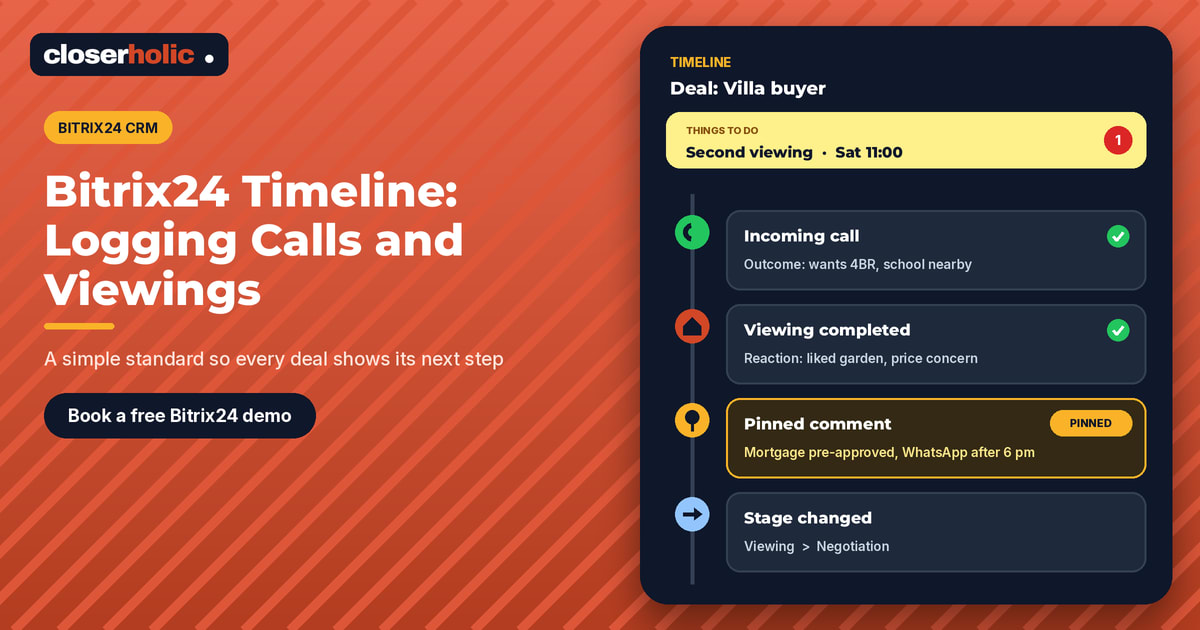
A manager opens a deal for a villa buyer before the weekly meeting. The timeline shows a call from three weeks ago, a comment that just says "spoke to client", and nothing since. Was there a viewing? Did the buyer like it? Is anyone following up? The agent knows, but the CRM does not.
Bitrix24 records a great deal automatically, but the most valuable information in real estate, what the buyer said and what happens next, still depends on how agents log their work. This guide explains how the Bitrix24 timeline works for real estate teams and suggests a simple logging standard for calls and viewings. The feature details come from Bitrix24's help documentation; the standard itself is our recommendation, so adapt it to your team.
What the timeline is
The timeline sits on the right side of every CRM item form, such as a lead, deal or contact. According to Bitrix24, this is where you plan activities, leave comments for colleagues and track stage changes, and all communication history with the client is saved there.
Bitrix24 groups what it records into categories, including:
- Communication with clients: incoming and outgoing calls, emails, chats, SMS and CRM form submissions, plus meetings and marketing campaigns
- CRM item actions: creation, stage changes, field edits and links to other items
- Activity and task actions: creation, field updates and status changes
- Document and workflow actions, such as documents created for signature and workflow status changes
So the timeline already shows that things happened. Your logging standard fills in what happened and what comes next.
Calls: let Bitrix24 log them, then add the outcome
With telephony connected, Bitrix24 automatically adds a CRM activity for every incoming or missed call from clients. Items with a missed call get a Missed call status and a counter, and if the agent calls back, that activity is closed automatically. For an incoming call, the agent can listen to the recording from the timeline, schedule a new activity and click Processed when finished. Incoming call activities can even be completed straight from the Kanban view.
What the system cannot capture is the meaning of the call. Ask agents to add one comment after every meaningful call, in a consistent format:
- Outcome: what was agreed, in one line
- Requirements update: anything new about budget, area, bedrooms or timing
- Next step: what happens next, and when
Some Bitrix24 plans also offer CoPilot features such as call transcription and conversation summaries, which appear in the timeline. They help, but check availability on your plan and treat them as support for the agent's own note, not a replacement.
Viewings: plan them as activities, close them with feedback
A viewing is the moment that matters most, so it should never live only in an agent's personal calendar. In Bitrix24 you create a CRM activity from the timeline:
- Click Activity.
- Add a description, for example "Viewing: 2BR apartment, ref [listing ref]".
- Set the deadline to the viewing time.
- Configure reminders.
- Use the additional actions to add it to your calendar, invite colleagues or specify the address.
- Click Save.
Planned activities appear on a yellow background in the Things to do section, with the closest deadline first. Activity counters remind the agent before the deadline; by default that is 15 minutes before, and it can be customised. If the buyer needs to pick a time, Bitrix24's Open slots option sends a link to your calendar by SMS, and the booked event appears in the CRM item form and your Bitrix24 calendar.
After the viewing, the agent marks the activity Completed and adds a feedback comment. A useful format is:
- Reaction: liked / neutral / not for them
- Why: the main reason in the buyer's own words
- Objections: price, layout, view, noise, timing
- Next step: second viewing, offer discussion, new options, or close
For planning viewings alongside tasks and the team calendar, see our guide to Bitrix24 tasks and calendar for real estate teams.
Want your agents' timelines to tell the full story? Book a free 30-minute Bitrix24 demo and we will walk through a setup for your team.
Comments, mentions and pinned notes
Comments are for information colleagues need. Bitrix24 lets you mention a colleague so they get a notification, attach a file from your computer or Bitrix24 Drive, and pin important comments to the top of the timeline. You can pin up to seven records in total, so reserve pins for facts that should never be missed, such as "Buyer is mortgage pre-approved, prefers WhatsApp after 6 pm" or "Owner must approve all viewings 24 hours ahead". Comments can be edited or deleted later from the three-dot menu if details change.
When a call lands on the wrong deal
A buyer looking at two properties may have two open deals, and their call or chat can end up on the wrong one. Bitrix24 lets you move an activity, such as a call, email or open channel chat, to another item of the same type, using the three-dot menu and Move activity. An entry then appears in the timelines of both items, so the history stays accurate.
A one-page logging standard
Print this, share it at onboarding and check it in weekly reviews:
- Every deal always has one planned next step. If Things to do is empty, the deal is drifting.
- Every meaningful call gets an outcome comment within the same working day.
- Every viewing is a planned activity with the listing reference and address.
- Every completed viewing gets a feedback comment in the agreed format.
- Pins are for lasting facts, not daily updates.
- Wrong-deal activities are moved, not duplicated.
- Personal phones and chats are not the record. If it matters, it goes in the timeline.
How managers use it
Once agents log consistently, the timeline becomes a coaching tool. Managers can use the timeline filters to search by event type, creation date, author or client, and quickly see whether follow-ups are happening. Pair this with Bitrix24 automation rules for follow-up so reminders are created for agents rather than chased by managers, and set sensible access permissions so each role sees the right deals.
Start small
You do not need a perfect process on day one. Pick two rules, such as "one next step on every deal" and "feedback after every viewing", and review them for a few weeks before adding more. Clean timelines make handovers easier, keep buyers from repeating themselves, and give managers a true picture of the pipeline.
Closerholic implements Bitrix24 for real estate teams in the UAE and GCC, from telephony and WhatsApp to activity standards and agent training. If you would like help setting this up, book a call.