Bitrix24 Smart Process Automation for Real Estate: Build a Property Database
👉 Book a free 30-minute Bitrix24 demo
Ask a brokerage where its listings live in Bitrix24 and you often hear an awkward answer. Some agencies squeeze properties into deals, so one apartment appears as five deals for five interested buyers. Others keep listings in a spreadsheet and copy details into the CRM by hand. Either way, nobody can open a single record and see everything about a unit: the owner, the status, the viewings and the buyers who asked about it.
Bitrix24 has a built-in answer for this: Smart Process Automation, usually shortened to SPA. Bitrix24's own help documentation uses a real estate agency as an example, describing a database of apartments with separate processes for sales and rentals. This guide walks through how to plan and set up an SPA as a property database, using only features described in Bitrix24's help centre.
What Smart Process Automation is
Bitrix24 CRM comes with standard items: leads, deals, contacts, companies, invoices and estimates. These suit selling a service, but a property is not a deal. It exists before any buyer appears and stays after a deal closes.
SPA lets you create your own CRM item type and adapt it to your process. According to Bitrix24, you can create forms with custom fields, set up separate pipelines and tunnels, add kanban stages, configure access permissions and connect the SPA with tasks, calendars and other Bitrix24 tools. Bitrix24 notes that you should check whether the option is available on your plan.
Step 1: Plan before you click Create
The most common mistake is building first and thinking later. Before you open the settings, answer these questions on paper:
- What is one record? Usually one unit: an apartment, villa, townhouse or plot. Buildings and projects can be a separate SPA if you need them.
- Which processes do you run? Sales and rentals usually need different stages.
- What must every listing have? Address or community, property type, bedrooms, size, owner, permit details and status.
- Who can see what? Agents, listing coordinators and managers rarely need identical access.
Keep the first version small. You can add fields later, but removing fields that agents have already filled in is painful.
Step 2: Create the SPA
In Bitrix24, open CRM, click More, expand Smart Process Automation, select Smart Process Automation and click Create. Bitrix24 offers three starting presets: Essentials only, All options selected and Empty SPA. Any option can be customised afterwards.
In the components section, give the SPA a clear name such as "Properties" and choose the tools you need. For a property database, the useful options are:
- Custom pipelines and sales funnels, so sales and rentals can run as separate pipelines
- Custom stages and kanban, so coordinators can move listings visually
- Automation rules and triggers, which Bitrix24 notes are only available in an SPA if you enable this option
- Workflow designer, if you plan to run workflows when items are created or updated
Step 3: Choose standard fields and options
Bitrix24 lets you choose which standard fields appear in the SPA form, including Customer (a link to contacts and companies), Source, Start date / End date and Observers, who can view the item and join a chat about it. For a property database, Customer is a natural place to link the owner's contact record. Note that Bitrix24 sets the end date automatically seven days after the start date, so only include those fields if they mean something in your process.
Additional options worth considering:
- Print documents, to generate documents from templates in the item form
- Use Recycle Bin, so deleted listings can be recovered rather than lost
- Use counters, to track upcoming activities on each listing
Step 4: Connect properties to deals and contacts
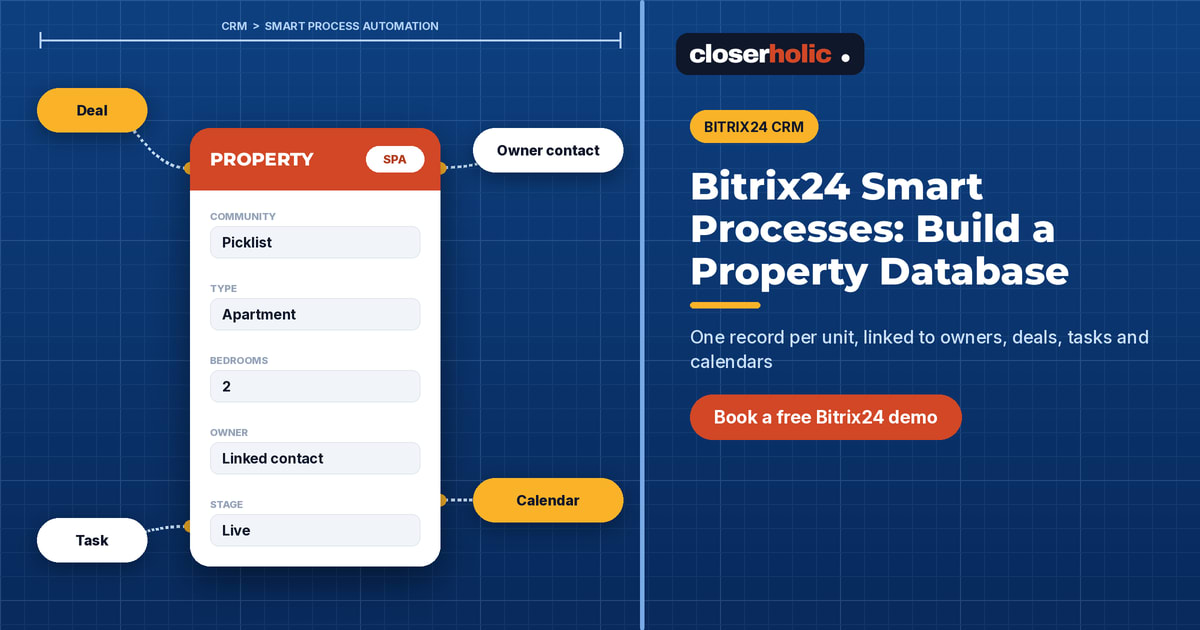
This is where a property database becomes powerful. On the CRM bindings tab, Bitrix24 lets you bind other CRM items to the SPA and link the SPA to other CRM items. For example, binding Deals adds a field to the property form for linking a deal, and you can add a tab to the form listing all linked items. Linking the SPA to Contacts adds a binding field to the contact form.
In practice, that means one property record can show every deal attached to it, and an owner's contact record can show the properties they own. On the Bind to other tools tab, you can also connect the SPA to calendars, tasks and task templates, so a viewing task can be attached to the property it concerns.
Not sure how your listings should map onto Bitrix24? Book a free 30-minute Bitrix24 demo and we will sketch it with you.
Step 5: Build the property form
To add fields, click the gear button in the Kanban or List view and select Field settings. Bitrix24 notes that if you have several SPAs, fields are created separately for each one. Once created, open an item form, click Select field, tick the fields and click Select. You can group fields into sections; for a property, sensible sections are:
- Location: community, building, unit number
- Specification: type, bedrooms, bathrooms, size, furnishing
- Owner and mandate: linked owner, mandate type, mandate dates
- Marketing: permit details, portal status, listing reference
Use picklists rather than free text for community and property type. Consistent values make filters and reports work.
Step 6: Stages, views and automation
Create kanban stages that match a listing's real life, for example: Onboarding, Ready to list, Live, Under offer, Closed and Withdrawn. Bitrix24 lets you add automation rules and triggers to any stage to create tasks, send notifications and emails, and copy an item to another SPA. A simple rule might create a photography task when a listing enters Onboarding. Bitrix24's own example moves an apartment automatically from a rental process to a sales process when it changes from rental to sale.
Each employee can configure which fields show on kanban cards, and you can set a quick create form so new listings start with only the essentials. The List view lets you choose columns and export to CSV or Microsoft Excel, and the Activities view organises items by the due dates of scheduled tasks.
Step 7: Set access permissions
Go to CRM > Settings > Access permissions > CRM, select a role and specify the actions it allows. If you use custom pipelines in the SPA, access to them is managed in the pipeline settings. Our role-by-role guide to Bitrix24 access permissions covers how brokerages usually split this between agents, coordinators and managers.
Common mistakes
- Too many fields on day one. Agents skip long forms. Start with what you filter and report on.
- Free-text communities. Spelling variations break every filter.
- Skipping the bindings. A property database that is not linked to deals and owners is just a nicer spreadsheet.
- Forgetting to enable automation. Automation rules only work in an SPA if the option is turned on.
Next steps
An SPA property database is often the backbone of a wider setup, from automation rules for follow-up to publishing listings on property portals. If you are planning a full rollout, our Bitrix24 implementation checklist helps you sequence the work.
Closerholic implements Bitrix24 for UAE real estate agencies, including property databases built on Smart Process Automation and listing integrations with Property Finder, Bayut and Dubizzle. If you would like help designing yours, book a call.